











The BetKing mobile application brings sports betting and casino games directly to your Android smartphone. Designed for Nigerian players, it offers faster access to live markets, smoother navigation, and instant notifications compared to the mobile website. Whether you are placing a quick bet on football or checking your account balance, the app keeps the main tools within easy reach.
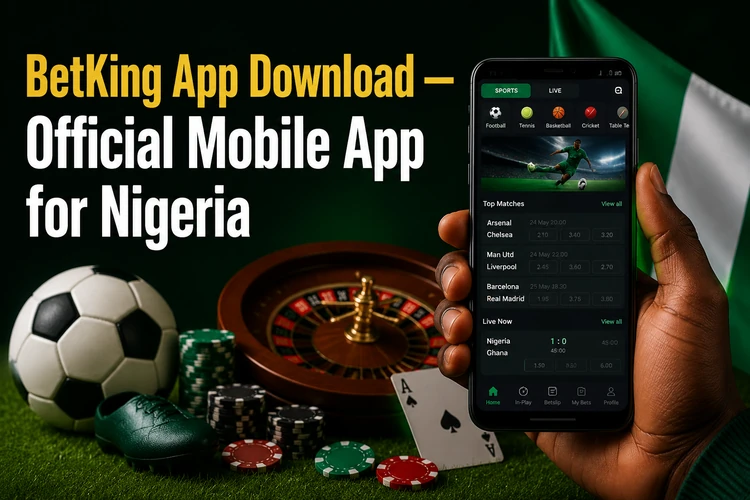
Installing the app takes a few minutes and works on most Android devices running version 5.0 or higher. Once set up, you can log in with your existing account credentials and start using the same wallet, bet history, and profile details you already have on the website.
Why Choose BetKing Mobile App?
The app loads markets faster than a browser because it stores frequently used data locally on your device. You may notice the difference when switching between live matches, checking odds, or browsing casino games from a weaker mobile connection.
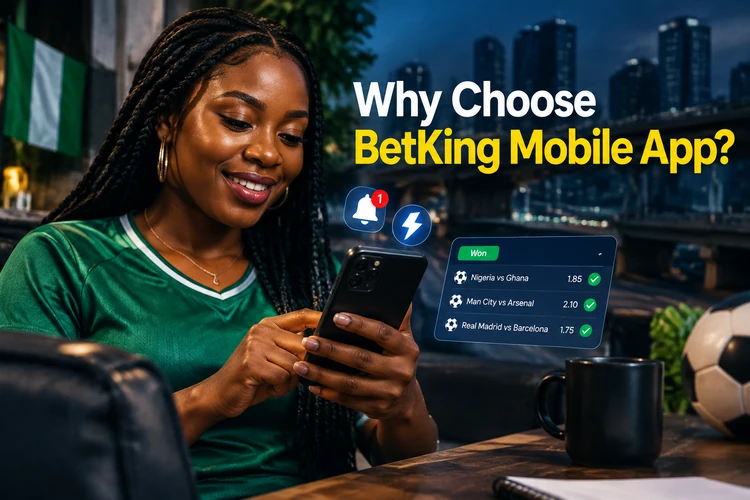
Push notifications can alert you to bet settlements, bonus credits, and match results without needing to open the app manually. The interface adapts to different screen sizes: smaller phones prioritise essential buttons, while larger screens can show more fixture and market information. The login process also reduces repeated typing, provided you keep your phone protected with a PIN, fingerprint, or face unlock.
How to Download BetKing APK
BetKing distributes its Android app as an APK file rather than through the Google Play Store. An APK is the installation package Android uses when an app is installed outside the store. To get it, visit the official BetKing website on your phone browser and look for the app section. The file size can change by version, so download over a stable connection if your data plan is limited.
Before installation, Android requires you to allow apps from unknown sources. This is a standard security setting that protects your device from unauthorised software. Go to Settings, then Security or Privacy, and enable the option for your browser or file manager. On newer Android versions, the permission is usually granted app by app when you open the APK file.
Always download the APK directly from the official website to reduce the risk of modified or outdated files. Third-party app stores and file-sharing platforms may host versions that no longer work properly. After installation completes, you can disable the permission again if you prefer tighter device security.
Installation Guide
Follow these steps to install the application on your Android device:
- Step 1: Open your mobile browser and navigate to the BetKing website.
- Step 2: Locate the app download section and tap the Android download button.
- Step 3: Wait for the APK file to finish downloading to your device.
- Step 4: Open your Downloads folder and tap the APK file.
- Step 5: If prompted, enable installation from unknown sources in your security settings.
- Step 6: Tap Install and wait for the process to complete.
- Step 7: Open the app from your home screen or app drawer.
- Step 8: Log in with your existing account or create a new one if needed.
The process is usually quick on a stable internet connection. If you encounter an error during installation, restart your phone and try again. Make sure you have free storage space for the app itself and for cached data such as images, odds screens, and account pages.
BetKing App Features
The application covers the main betting and gaming options available on the desktop site. Sports betting includes pre-match and live markets for football, basketball, tennis, and other popular events. Live betting updates odds as the action changes, and major fixtures may include match progress information. You can place single bets, accumulators, and system bets directly from the event page.
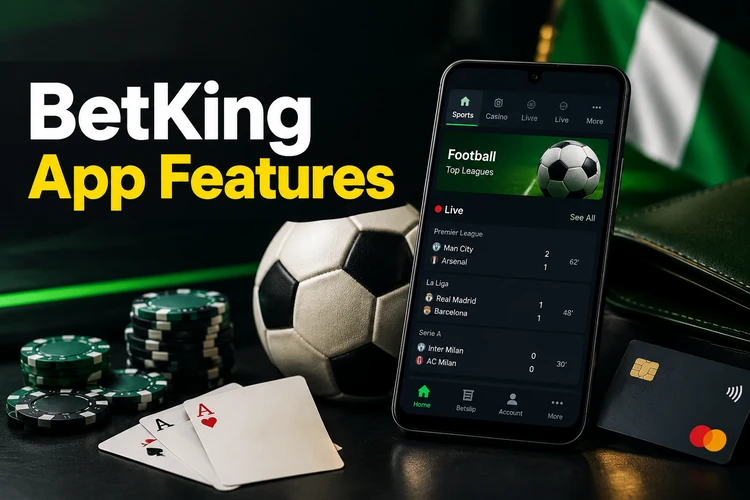
The casino section may include slots, table games, and live dealer rooms depending on account access and current availability. Game filters help you sort by provider, category, or popularity. Bet history is available from the account menu, showing settled and pending wagers with timestamps and odds. Deposits and withdrawals use the same secure channels as the website, so you do not need to set up a separate mobile wallet.
Notifications can be adjusted in the settings menu. You can choose alerts for bet results, offers, match kick-offs, or account activity. The app also displays your current balance clearly, which helps you check funds before confirming a slip or requesting a withdrawal.
BetKing App for Nigerian Players
The application is built for everyday mobile use in Nigeria, where network quality can vary between cities, towns, and indoor locations. Data compression and cached screens help reduce repeated loading when you move between pages. If a live market is moving quickly, confirm the displayed odds before submitting the bet, as prices can change within seconds.
Transactions are handled in Naira, which avoids currency conversion during deposits and withdrawals. The app supports the same local payment options available on the website, including Nigerian bank channels where provided for your account. Customer support through the app connects you to the same service options available on the web platform.
BetKing Old Mobile Lite Version
The Old Mobile Lite version was designed for older Android devices with limited processing power and memory. It uses a simpler interface with fewer graphics and animations, which can help on phones with small RAM capacity or very restricted data plans.
If your device struggles with the current app, the Lite version may feel more stable. However, it can lack newer features such as richer statistics screens, newer casino layouts, or updated promotional areas. Most users with phones released in the last few years should use the standard app unless performance problems make the lighter version necessary.
Updating the BetKing App
BetKing releases updates to fix bugs, improve performance, and add new features. When an update is available, you may see a notification inside the app prompting you to download the latest version. You can also check manually by comparing the version number shown on the website with the one in your app settings.
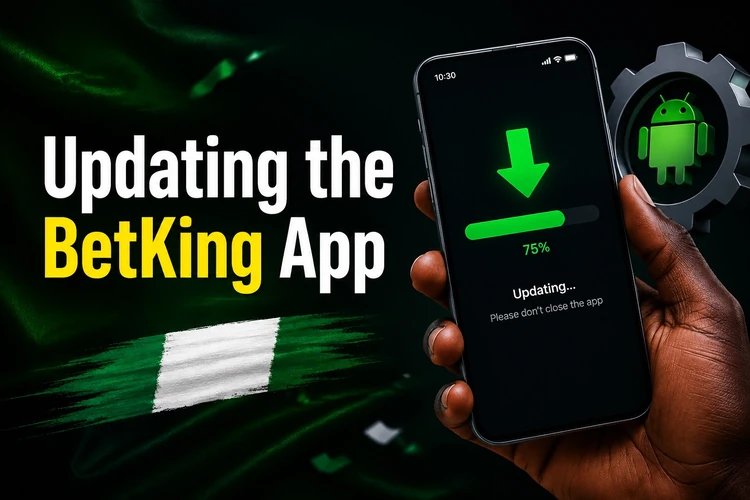
To update, download the new APK file just as you did for the original installation. You normally do not need to uninstall the old version first; Android replaces it while preserving account data and settings. If an update fails, restart the device, clear some storage, and try again from a fresh download.
Common Problems and Solutions
If the APK file will not install, check that installation from unknown sources is enabled for the app you used to download the file. Some Android versions place this option under Special app access. If installation still fails, your storage may be full, or the download may be incomplete.
Login errors usually indicate an incorrect username, phone number, or password. Use the password reset option on the login page if you have forgotten your credentials. Slow performance often relates to weak internet connectivity rather than the app itself, so switch from mobile data to Wi-Fi where available or move to an area with better signal strength.
If the app crashes on startup, clear its cache through your device settings and reopen it. This removes temporary files without deleting your BetKing account. For persistent issues, uninstall the app, restart your phone, and install the latest APK again.
FAQ
Visit the official BetKing website on your Android phone, open the app section, and tap the download button. The APK file will save to your device. Open it from your Downloads folder and follow the installation prompts after allowing installation from that source.
It is safest when downloaded directly from the official BetKing website. Avoid third-party sites or file-sharing platforms, as they may provide modified, incomplete, or outdated files that can put your account or device at risk.
Yes. The app uses the same account system as the website. Log in with your current details, and your balance, profile information, and bet history should be available without creating a separate mobile account.
The draft requirement is Android 5.0 or higher. Most recent smartphones meet this requirement. If your device is older, the mobile website may be a better option than forcing an installation that could run slowly.
Download the latest APK from the official website and install it over the existing app. Android normally replaces the old version while keeping your settings and account access. If the update fails, free storage space and download the file again.
Yes. The app supports the same payment options available to your account on the website, including Nigerian bank channels where offered. Transactions are handled in Naira, and processing times follow the platform's normal payment rules.